.png?width=400&height=86&name=BrainTap%20Logo%20with%20Tagline%202023%20(1).png)
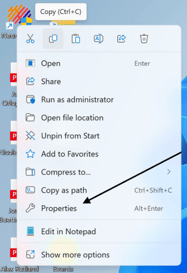
- Find the NeuralChek icon on your computers home screen
- Right click on the NeuralChek icon, and select "Properties"
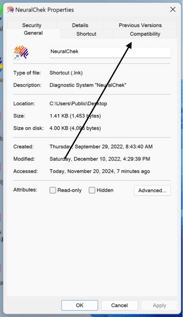
- Once you are in the NeuralChek Properties screen, click on "Compatibility"
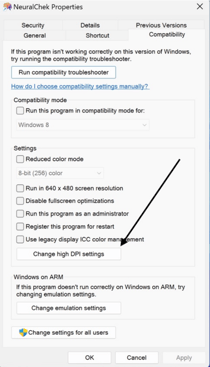
- Select "Change High DPI Settings"
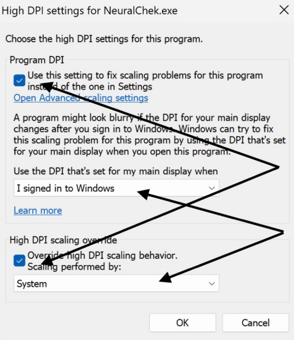
- Ensure both boxes are checked and options are selected under
- "Use DPI that's set for my main display when" to "I signed in to Windows"
- "High DPI scaling override" to "System"
- Reference the image below ensuring yours matches this exactly.
- Click "OK"
- Click "Apply"
- Then click "OK"
Relauch NeuralChek and your text should appear to be normal size.
If you are still experiencing issues or have any additional questions, please contact support.
(302) 721-6677